
Inbox
The Inbox is the central workspace where all user conversations are collected and managed. It allows teams to monitor AI responses, take over conversations, assign ownership, set priorities, and resolve queries efficiently.
Inbox Layout
The Inbox is divided into three main sections:
- Conversation List (Left Panel)
- Conversation View (Center Panel)
- Conversation Controls (Right Panel)
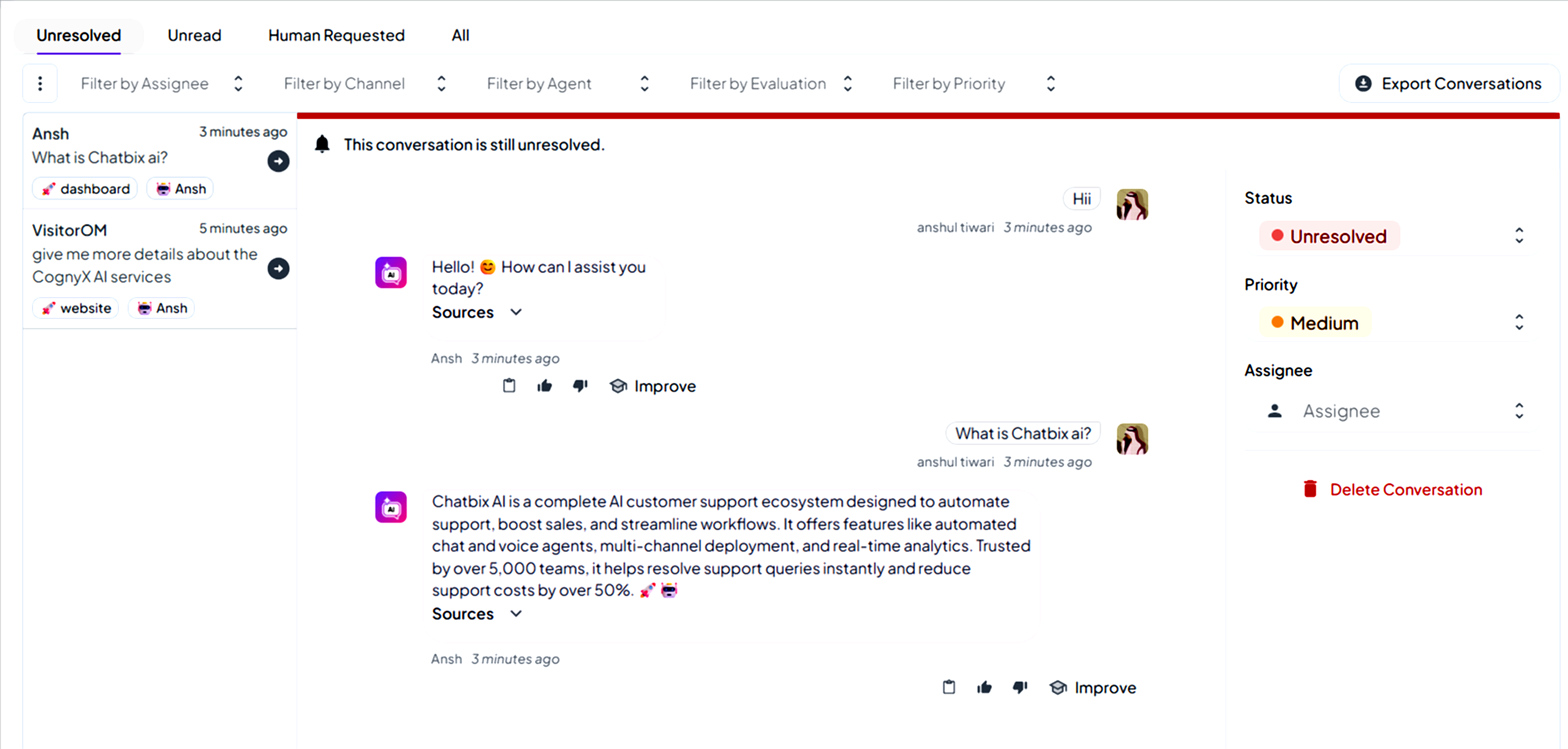
1. Conversation List (Left Panel)
This panel displays all incoming conversations.
What you see:
- User name or identifier
- Assigned Agent (e.g., Flopsy)
- Timestamp of the last message
- Source tag (e.g., dashboard, widget, API)
Conversation Status Tabs
Located at the top of the Inbox:
- Unresolved – Conversations that are not yet marked as resolved
- Unread – New or unseen conversations
- Human Requested – Conversations where users requested human help
- All – All conversations
2. Filters & Search
Inbox filters help teams quickly locate conversations.
Available Filters:
- Filter by Assignee – Show conversations assigned to a specific team member
- Filter by Channel – Website, API, Email, etc.
- Filter by Agent – Filter by AI agent handling the conversation
- Filter by Evaluation – AI quality feedback (if enabled)
- Filter by Priority – High, Medium, Low
Export Conversations
Use Export Conversations to download conversation data for audits or analysis.
3. Conversation View (Center Panel)
This area displays the full conversation between the user and the AI agent.
Message Types:
- User message
- AI-generated responses
- System messages
Message Features:
- Timestamp for each message
- Agent name and avatar
- Expandable response content
- Source references (if enabled)
4. Conversation Controls (Right Panel)
The right panel provides tools to manage each conversation.
Status
Set the conversation status:
- Unresolved
- Resolved
Priority
Assign importance level:
- Low
- Medium
- High
Assignee
Assign the conversation to:
- A specific team member
- Yourself
Delete Conversation
Permanently remove the conversation (admin access required).
5. Human Takeover & Escalation
If AI responses are insufficient:
- A human agent can step in
- Continue the conversation manually
- Update or correct the AI response
This ensures high-quality support and continuous AI improvement.